Setup your own dedicated Base RPC
Learn how to deploy your own dedicated Base RPC from buying the server to running your wallet or app
Let's walkt through the setup of your own Base RPC Node that you can then use for just about anything your want.
Prerequisites
You will need
- Dedicated Server: I recommend a dedicated baremetal server. You can pick them up from OVH (US) or Hetzner (EU) for very reasonable prices, pay up front for the year for savings.
-- OVH:ADVANCE-1 | AMD EPYC 4244P - 6c/12t - 3.8 GHz/5.1 GHz, 64 GB 5200 MHz, 4x3.84 TB SSD NVMe, Soft RAID-- Hetzner:ADD THE DETAILS HERE
Setting up the server
Setup Base RPC with OVH
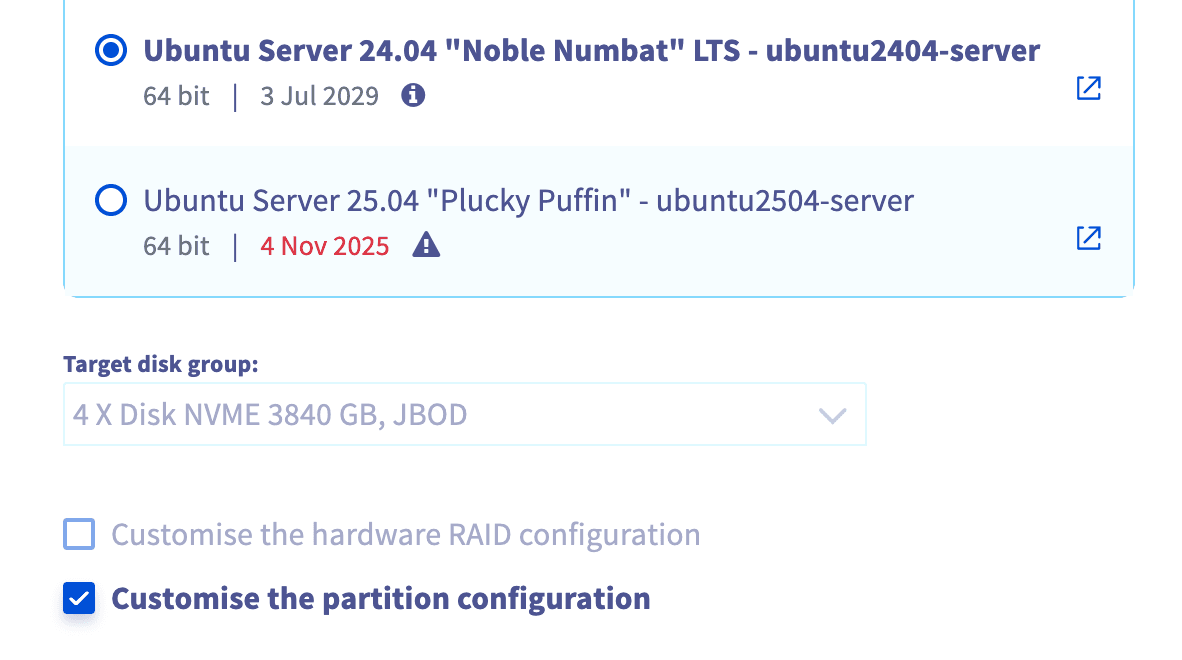
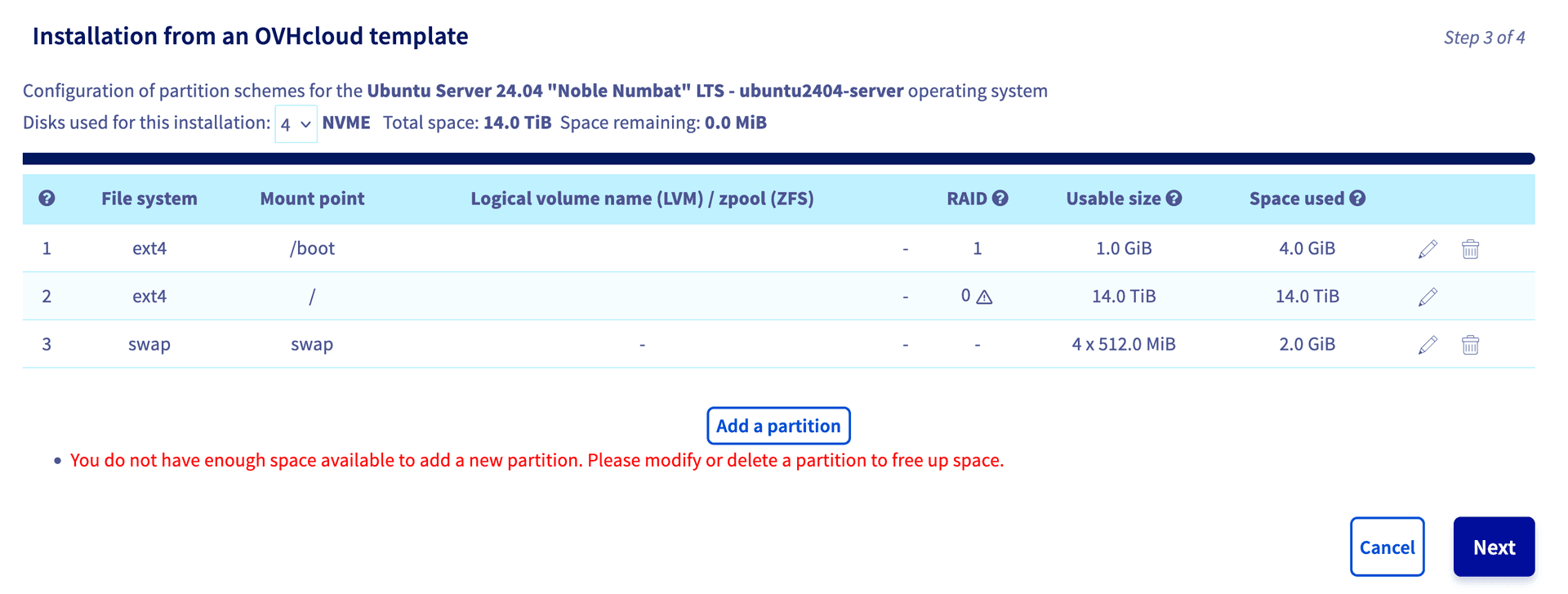
You want to choose Ubuntu Server 24.04 "Noble Numbat" as your operating system. This is a LTS version that is well supported and has a long lifecycle.
Setup Base RPC Server with Hetzner
You should also add your SSH key to the server so you can SSH into it once it has finished building.
Hetzner Server Configuration
When setting up with Hetzner, start your server in rescue mode with the latest Ubuntu (currently 24.04). Here's the complete installimage configuration:
## ======================================================
##  Hetzner Online GmbH - installimage - standard config
## ======================================================

## ====================
##  HARD DISK DRIVE(S):
## ====================

# Device Model: SAMSUNG MZVL21T0HCLR-00B00, Serial Number: S676NL0W814822
DRIVE1 /dev/nvme0n1

# Device Model: SAMSUNG MZVL21T0HCLR-00B00, Serial Number: S676NL0W814814
DRIVE2 /dev/nvme1n1

# Device Model: SAMSUNG MZ7L33T8HBLT-00A07, Serial Number: S6ERNE0R802143
DRIVE3 /dev/sda

# Device Model: SAMSUNG MZ7L33T8HBLT-00A07, Serial Number: S6ERNN0X609162
DRIVE4 /dev/sdb

## ===============
##  SOFTWARE RAID:
## ===============

## activate software RAID?  < 0 | 1 >
SWRAID 1

## Choose the level for the software RAID < 0 | 1 | 5 | 6 | 10 >
SWRAIDLEVEL 0

## ==========
##  HOSTNAME:
## ==========

HOSTNAME Ubuntu-2404-noble-amd64-base

## ================
##  NETWORK CONFIG:
## ================

## =============
##  MISC CONFIG:
## =============

USE_KERNEL_MODE_SETTING yes

## ==========================
##  PARTITIONS / FILESYSTEMS:
## ==========================

# EFI System Partition (required for UEFI boot)
PART /boot/efi esp 256M

# Boot partition (cannot be on RAID 0)
PART /boot ext4 1024M

# Small swap (8GB should be sufficient for most workloads)
PART swap swap 8G

# Root partition with OS and system files (40GB)
PART / ext4 40G

# Dedicated partition for Base RPC data - gets all remaining space (~8.9TB)
PART /opt ext4 all

## ========================
##  OPERATING SYSTEM IMAGE:
## ========================

IMAGE /root/.oldroot/nfs/install/../images/Ubuntu-2404-noble-amd64-base.tar.gz
Initial Server Setup
After the server boots, SSH into it and run initial updates:
apt update && apt upgradeInstall monitoring exporters for Prometheus:
apt install prometheus-node-exporter && apt install prometheus-nginx-exporterInstall Tailscale
For secure remote access, install Tailscale (login as your overarching user):
curl -fsSL https://tailscale.com/install.sh | sh
tailscale up
After connecting, login to Tailscale and disable the key expiry.
Configure UFW Firewall
Set up the firewall to secure your server:
# Tailscale SSH access
ufw allow in on tailscale0 to any port 22 proto tcp comment "Tailscale SSH access"
ufw allow from any to any port 41641 proto udp comment "Tailscale P2P"
Optionally, allow SSH from specific IPs as a backdoor:
ufw allow from xx.xxx.xxxx.xx/32 to any port 22 comment "SSH access - Your Home static IP as a back door"Allow RPC access:
ufw allow from any to any port 443
ufw allow from any to any port 80
ufw allow from any to any port 8545
ufw allow from any to any port 8546
ufw allow from any to any port 7545
ufw allow from any to any port 9222

ufw enable
Enable Unattended Upgrades
Keep your system secure with automatic security updates:
apt-get update && apt-get install unattended-upgrades -yConfirm the daemon is running:
systemctl status unattended-upgrades --no-pager -lInstalling Docker
Follow the official Docker installation guide for Ubuntu.
Setting Up the Base Node
Navigate to the /opt directory and clone the Base node repository:
cd /opt
git clone https://github.com/base/node.git
Download Base Snapshot
Install aria2 for faster downloads (4x faster than wget):
apt install aria2Download the appropriate snapshot for your network:
# GETH
aria2c -x 16 -s 16 --file-allocation=none --continue=true \
  https://sepolia-full-snapshots.base.org/$(curl https://sepolia-full-snapshots.base.org/latest)

# RETH Sepolia
aria2c -x 16 -s 16 \
  "https://sepolia-reth-archive-snapshots.base.org/$(curl -s https://sepolia-reth-archive-snapshots.base.org/latest)"

# RETH Mainnet
aria2c -x 16 -s 16 \
  "https://mainnet-reth-archive-snapshots.base.org/$(curl https://mainnet-reth-archive-snapshots.base.org/latest)"
Extract and Organize Data
Once downloaded, extract and organize the snapshot data:
mkdir /opt/node/reth-data
cd /opt/node/reth-data

tar --use-compress-program=unzstd -xvf /opt/base-sepolia-reth-1751769312.tar.zst
This extracts everything to /opt/node/reth-data/snapshots/sepolia/download. Move files to the correct location:
# From your current location, move everything up to the reth-data directory
cd /opt/node/reth-data/snapshots/sepolia/download/

# Move all the database files to the parent reth-data directory
mv * /opt/node/reth-data/

# Go back to the reth-data directory
cd /opt/node/reth-data/

# Clean up the empty subdirectories
rm -rf snapshots/

# Verify the correct structure
ls -la
Configure Environment
Set up your environment for RETH:
cd /opt/node

# Ensure your environment is set for reth
cat > .env << EOF
CLIENT=reth
HOST_DATA_DIR=./reth-data
EOF
For GETH, use:
cat > .env << EOF
CLIENT=geth
HOST_DATA_DIR=./geth-data
EOF
Network Configuration for Sepolia (RETH)
Create your .env.sepolia file:
# BASE SEPOLIA TESTNET RPC NODE CONFIGURATION (OPTIMIZED)
# =========================================================

# NETWORK CONFIGURATION
# --------------------
RETH_CHAIN=base-sepolia
OP_NODE_NETWORK=base-sepolia
OP_GETH_OP_NETWORK=base-sepolia

# BASE SEQUENCER ENDPOINTS
# -----------------------
RETH_SEQUENCER_HTTP=https://sepolia-sequencer.base.org
OP_SEQUENCER_HTTP=https://sepolia-sequencer.base.org
OP_GETH_SEQUENCER_HTTP=https://sepolia-sequencer.base.org
OP_RETH_SEQUENCER_HTTP=https://sepolia-sequencer.base.org

# SYNC CONFIGURATION
# -----------------
OP_NODE_SYNCMODE=execution-layer
OP_NODE_VERIFIER_L1_CONFS=4
OP_NODE_ROLLUP_LOAD_PROTOCOL_VERSIONS=true

# L1 CONFIGURATION (USING YOUR EXISTING ENDPOINTS)
# -----------------------------------------------
OP_NODE_L1_ETH_RPC=https://<your ETH RPC URL (or use Alchemy)>
OP_NODE_L1_BEACON=https://<your ETH RPC URL (or use Alchemy)>
OP_NODE_L1_BEACON_ARCHIVER=<your ETH RPC URL (or use Alchemy)>
OP_NODE_L1_BEACON_FETCH_ALL_SIDECARS="true"
OP_NODE_L1_RPC_KIND="debug_geth"
OP_NODE_L1_TRUST_RPC="true" # We set this to true because we trust the RPCs

# ENGINE CONFIGURATION (RETH)
# ---------------------------
OP_NODE_L2_ENGINE_KIND=reth
OP_NODE_L2_ENGINE_RPC=ws://execution:8551
OP_NODE_L2_ENGINE_AUTH=/tmp/engine-auth-jwt
OP_NODE_L2_ENGINE_AUTH_RAW=688f5d737bad920bdfb2fc2f488d6b6209eebda1dae949a8de91398d932c517a

# P2P CONFIGURATION (USING YOUR UPDATED BOOTNODES)
# -----------------------------------------------
OP_NODE_P2P_AGENT=base
OP_NODE_P2P_LISTEN_IP=0.0.0.0
OP_NODE_P2P_LISTEN_TCP_PORT=9222
OP_NODE_P2P_LISTEN_UDP_PORT=9222
OP_NODE_INTERNAL_IP="true"
OP_NODE_P2P_BOOTNODES=enr:-J24QNz9lbrKbN4iSmmjtnr7SjUMk4zB7f1krHZcTZx-JRKZd0kA2gjufUROD6T3sOWDVDnFJRvqBBo62zuF-hYCohOGAYiOoEyEgmlkgnY0gmlwhAPniryHb3BzdGFja4OFQgCJc2VjcDI1NmsxoQKNVFlCxh_B-716tTs-h1vMzZkSs1FTu_OYTNjgufplG4N0Y3CCJAaDdWRwgiQG,enr:-J24QH-f1wt99sfpHy4c0QJM-NfmsIfmlLAMMcgZCUEgKG_BBYFc6FwYgaMJMQN5dsRBJApIok0jFn-9CS842lGpLmqGAYiOoDRAgmlkgnY0gmlwhLhIgb2Hb3BzdGFja4OFQgCJc2VjcDI1NmsxoQJ9FTIv8B9myn1MWaC_2lJ-sMoeCDkusCsk4BYHjjCq04N0Y3CCJAaDdWRwgiQG,enr:-J24QDXyyxvQYsd0yfsN0cRr1lZ1N11zGTplMNlW4xNEc7LkPXh0NAJ9iSOVdRO95GPYAIc6xmyoCCG6_0JxdL3a0zaGAYiOoAjFgmlkgnY0gmlwhAPckbGHb3BzdGFja4OFQgCJc2VjcDI1NmsxoQJwoS7tzwxqXSyFL7g0JM-KWVbgvjfB8JA__T7yY_cYboN0Y3CCJAaDdWRwgiQG,enr:-J24QHmGyBwUZXIcsGYMaUqGGSl4CFdx9Tozu-vQCn5bHIQbR7On7dZbU61vYvfrJr30t0iahSqhc64J46MnUO2JvQaGAYiOoCKKgmlkgnY0gmlwhAPnCzSHb3BzdGFja4OFQgCJc2VjcDI1NmsxoQINc4fSijfbNIiGhcgvwjsjxVFJHUstK9L1T8OTKUjgloN0Y3CCJAaDdWRwgiQG,enr:-J24QG3ypT4xSu0gjb5PABCmVxZqBjVw9ca7pvsI8jl4KATYAnxBmfkaIuEqy9sKvDHKuNCsy57WwK9wTt2aQgcaDDyGAYiOoGAXgmlkgnY0gmlwhDbGmZaHb3BzdGFja4OFQgCJc2VjcDI1NmsxoQIeAK_--tcLEiu7HvoUlbV52MspE0uCocsx1f_rYvRenIN0Y3CCJAaDdWRwgiQG

# RETH CONFIGURATION
# ----------------
OP_RETH_DISABLE_DISCOVERY="false"
OP_RETH_DISABLE_TX_POOL_GOSSIP="true"
OP_RETH_OP_NETWORK="base"

# RPC CONFIGURATION
# ---------------
OP_NODE_RPC_ADDR=0.0.0.0
OP_NODE_RPC_PORT=8545

# CACHE SETTINGS (OPTIMIZED FOR RPC)
# ---------------------------------
GETH_CACHE="8192" # 8GB for RPC workloads
GETH_CACHE_DATABASE="25" # 2GB
GETH_CACHE_GC="25"
GETH_CACHE_SNAPSHOT="25"
GETH_CACHE_TRIE="25"
OP_GETH_NET_RESTRICT="10.0.0.0/8"

# LOGGING & MONITORING
# ------------------
OP_NODE_LOG_LEVEL=info
OP_NODE_LOG_FORMAT="json"
OP_NODE_SNAPSHOT_LOG=/tmp/op-node-snapshot-log
OP_NODE_METRICS_ENABLED="true"
OP_NODE_METRICS_ADDR=0.0.0.0
OP_NODE_METRICS_PORT="7300"
STATSD_ADDRESS="172.17.0.1"

# FLASHBLOCKS (ENABLED FOR FASTER PERFORMANCE)
# -------------------------------------------
RETH_FB_WEBSOCKET_URL=wss://sepolia.flashblocks.base.org/ws

# SNAP SYNC (ENABLED FOR FASTER SYNC)
# ----------------------------------
#OP_NETHERMIND_BOOTNODES=enode://87a32fd13bd596b2ffca97020e31aef4ddcc1bbd4b95bb633d16c1329f654f34049ed240a36b449fda5e5225d70fe40bc667f53c304b71f8e68fc9d448690b51@3.231.138.188:30301,enode://ca21ea8f176adb2e229ce2d700830c844af0ea941a1d8152a9513b966fe525e809c3a6c73a2c18a12b74ed6ec4380edf91662778fe0b79f6a591236e49e176f9@184.72.129.189:30301,enode://acf4507a211ba7c1e52cdf4eef62cdc3c32e7c9c47998954f7ba024026f9a6b2150cd3f0b734d9c78e507ab70d59ba61dfe5c45e1078c7ad0775fb251d7735a2@3.220.145.177:30301,enode://8a5a5006159bf079d06a04e5eceab2a1ce6e0f721875b2a9c96905336219dbe14203d38f70f3754686a6324f786c2f9852d8c0dd3adac2d080f4db35efc678c5@3.231.11.52:30301,enode://cdadbe835308ad3557f9a1de8db411da1a260a98f8421862da90e71da66e55e98aaa8e90aa7ce01b408a54e4bd2253d701218081ded3dbe5efbbc7b41d7cef79@54.198.153.150:30301
#OP_GETH_BOOTNODES=enode://87a32fd13bd596b2ffca97020e31aef4ddcc1bbd4b95bb633d16c1329f654f34049ed240a36b449fda5e5225d70fe40bc667f53c304b71f8e68fc9d448690b51@3.231.138.188:30301,enode://ca21ea8f176adb2e229ce2d700830c844af0ea941a1d8152a9513b966fe525e809c3a6c73a2c18a12b74ed6ec4380edf91662778fe0b79f6a591236e49e176f9@184.72.129.189:30301,enode://acf4507a211ba7c1e52cdf4eef62cdc3c32e7c9c47998954f7ba024026f9a6b2150cd3f0b734d9c78e507ab70d59ba61dfe5c45e1078c7ad0775fb251d7735a2@3.220.145.177:30301,enode://8a5a5006159bf079d06a04e5eceab2a1ce6e0f721875b2a9c96905336219dbe14203d38f70f3754686a6324f786c2f9852d8c0dd3adac2d080f4db35efc678c5@3.231.11.52:30301,enode://cdadbe835308ad3557f9a1de8db411da1a260a98f8421d62da90e71da66e55e98aaa8e90aa7ce01b408a54e4bd2253d701218081ded3dbe5efbbc7b41d7cef79@54.198.153.150:30301
#OP_GETH_SYNCMODE=snap
Start the Node
Build and start your containers:
# Set network environment
export NETWORK_ENV=.env.sepolia

# Build the reth containers
docker compose build

# Start the services
docker compose up -d

# Check the services
docker ps

# Check the logs
docker logs -f node-execution-1
docker logs -f node-node-1
Setting Up NGINX
Install and enable NGINX:
apt install nginx
systemctl enable nginx
Copy SSL Certificates
# Create SSL directories
mkdir -p /etc/ssl/certs /etc/ssl/private

# Copy your existing certificate files to the new server
# Replace these paths with your actual certificate locations:
# /etc/ssl/certs/your_domain.crt
# /etc/ssl/private/your_domain.key

# Set proper permissions after copying
chmod 644 /etc/ssl/certs/your_domain.crt
chmod 600 /etc/ssl/private/your_domain.key
Configure NGINX Main Config
# Backup existing config
cp /etc/nginx/nginx.conf /etc/nginx/nginx.conf.backup

# Update main nginx.conf
tee /etc/nginx/nginx.conf > /dev/null << 'EOF'
user www-data;
worker_processes auto;
pid /run/nginx.pid;
error_log /var/log/nginx/error.log;
include /etc/nginx/modules-enabled/*.conf;

events {
    worker_connections 768;
}

http {
    sendfile on;
    tcp_nopush on;
    types_hash_max_size 2048;

    map $http_upgrade $connection_upgrade {
        default close;
        websocket Upgrade;
    }

    include /etc/nginx/mime.types;
    default_type application/octet-stream;

    ssl_protocols TLSv1 TLSv1.1 TLSv1.2 TLSv1.3;
    ssl_prefer_server_ciphers on;

    access_log /var/log/nginx/access.log;
    gzip on;

    include /etc/nginx/conf.d/*.conf;
    include /etc/nginx/sites-enabled/*;
}
EOF
Create Site Configuration
# Remove default site if it exists
rm -f /etc/nginx/sites-enabled/default

# Create your RPC site configuration
tee /etc/nginx/sites-available/rpc > /dev/null << 'EOF'
map $http_upgrade $backend {
    default http://127.0.0.1:8545;
    websocket http://127.0.0.1:8546;
}

server {
    listen 443 ssl;
    server_name yourdomain.com yourotherdomain.com;

    # RSA Certificate
    ssl_certificate /etc/ssl/certs/your_domain.crt;
    ssl_certificate_key /etc/ssl/private/your_domain.key;

    location ^~ /a/oicojiowiejo { # this is just a custom url, choose your own
        if ($request_method = OPTIONS) {
            add_header Content-Length 0;
            add_header Content-Type text/plain;
            add_header Access-Control-Allow-Methods "GET, POST, PUT, DELETE, OPTIONS";
            add_header Access-Control-Allow-Origin $http_origin;
            add_header Access-Control-Allow-Headers "Authorization, Content-Type";
            add_header Access-Control-Allow-Credentials true;
            return 200;
        }

        proxy_http_version 1.1;
        proxy_set_header Upgrade $http_upgrade;
        proxy_set_header Connection $connection_upgrade;
        proxy_set_header Host $host;
        proxy_cache_bypass $http_upgrade;

        proxy_pass $backend;
    }
}
EOF

# Enable the site
ln -s /etc/nginx/sites-available/rpc /etc/nginx/sites-enabled/rpc
Test and Start NGINX
# Test nginx configuration
nginx -t

# If test passes, start/restart nginx
systemctl restart nginx

# Check status
systemctl status nginx
Upgrading RPCs
When upgrading your RPC nodes, follow this process to minimize downtime:
- Disable NGINX to pull the node out of the network:
systemctl stop nginx- Stop and upgrade your node
- Verify that the node has reached the chain head
- Re-enable NGINX
New Upgrade Approach
A new approach to RPC upgrades is being implemented for easier maintenance:
- The
.env.mainnet/sepoliafile is now kept in/opt/base-config - Data is contained in
base-reth-data
Upgrade steps:
- Stop NGINX
- Stop Docker:
docker compose down - Move existing setup:
mv /opt/node /opt/node-old - Move configuration:
mv /opt/node-old/.env.mainnet /opt/base-config/.env.mainnet - Move data:
mv /opt/node-old/reth-data /opt/base-reth-data - Download latest:
cd /opt && git clone https://github.com/base/node.git - Checkout version:
cd node && git checkout v0.13.0
Before starting, set the relevant details for RETH:
export CLIENT=reth
export HOST_DATA_DIR=/opt/base-reth-data
export NETWORK_ENV=/opt/base-config/.env.mainnet
Important
Always check that the latest version hasn't changed the .env.mainnet structure before upgrading.
Additional Configurations
Fixing CORS Issues
If you encounter CORS issues with Erigon, update the systemd service:
nano /etc/systemd/system/execution.serviceAdd --http.vhosts=* --http.corsdomain=* after the --http.api line:
[Unit]
Description=Erigon Execution Layer Client service for Holesky
Wants=network-online.target
After=network-online.target
Documentation=https://www.coincashew.com

[Service]
Type=simple
User=execution
Group=execution
Restart=on-failure
RestartSec=3
KillSignal=SIGINT
TimeoutStopSec=900
ExecStart=/usr/local/bin/erigon \
--datadir /var/lib/erigon \
--chain sepolia \
--port 30303 \
--torrent.port 42069 \
--maxpeers 50 \
--externalcl \
--http.addr=0.0.0.0 --http.port=8545 --http.api=eth,erigon,ots,web3,net,debug,trace,txpool \
--http.vhosts=* --http.corsdomain=* \
--ws --ws.port=8546 \
--private.api.addr 127.0.0.1:9099 \
--authrpc.port 8551 \
--metrics --metrics.addr 0.0.0.0 --metrics.port=6060 \
--pprof \
--prune.mode archive \
--authrpc.jwtsecret=/secrets/jwtsecret

[Install]
WantedBy=multi-user.target
Reload and restart:
systemctl daemon-reload
systemctl restart execution.service
systemctl status execution.service
Wait a few seconds for Erigon to start up, then verify:
ps aux | grep erigonYou should see --http.vhosts=* --http.corsdomain=* in the command line output.
Resources
- Base Account Documentation -0 add hetzner and ovh affiliates.
- Spend Permissions Spec
- Base SDK on GitHub
Ready to eliminate payment processor fees and give users true subscription control? Start building with Base recurring payments today.
OnBase Launch
Deploy and manage your smart contracts with confidence
Deploy Your Subscription Service→Related Posts
Building a Token Fee Simulator as a Base Mini App
A comprehensive guide to building a cross-chain token fee calculator that works as a native Base mini app, featuring real-time volume data from Solana and Base tokens.

Running an LLM on Orange Pi for Base L2 Development
Learn how to set up and run a private large language model on Orange Pi hardware to build AI-powered dApps on Base L2 with complete data privacy.

Building Subscription Services with Base Recurring Payments
Learn how to implement onchain recurring payments using Base's Spend Permissions feature for subscription-based revenue without merchant fees.